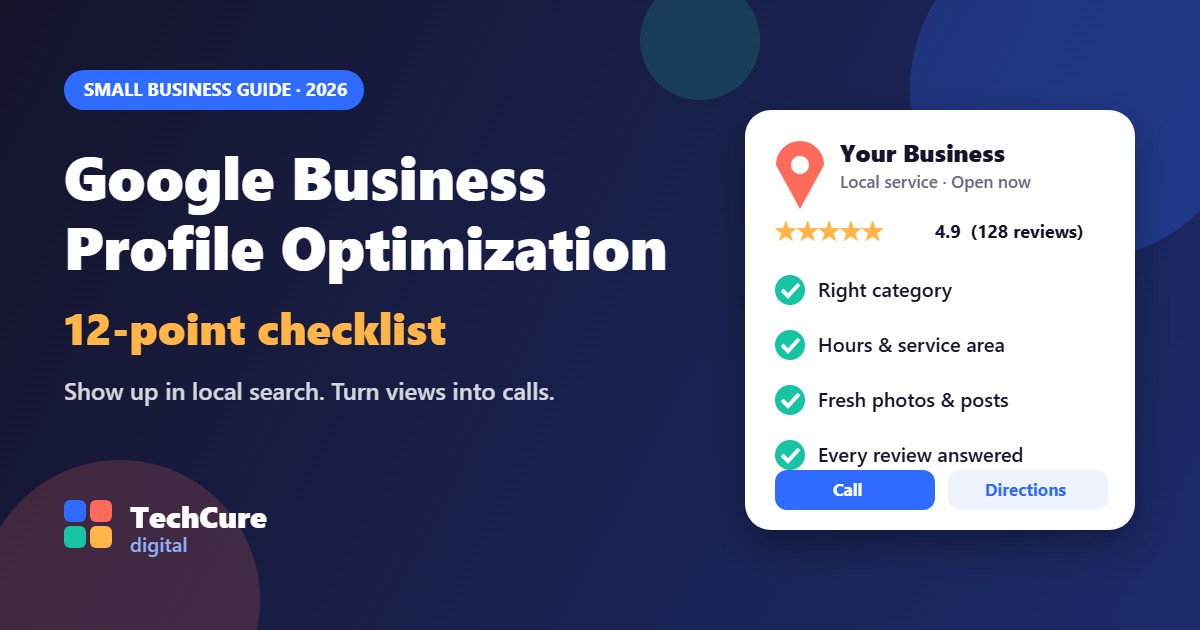
When someone nearby searches for a business like yours, the first thing they usually see is not your website. It is your Google Business Profile: your name, star rating, hours, photos and a button to call or get directions. Google Business Profile optimization is simply making sure that listing is complete, accurate and active, so more of those searches turn into calls and visits.
The good news: the profile is free, and most of the work takes an afternoon to set up and about 15 minutes a week to keep fresh. Here is the 12-point checklist we use for small businesses in Canada and the US.
Why your Google Business Profile matters
For local searches such as “plumber near me” or “family restaurant Scarborough”, Google shows a map with a short list of businesses before the regular results. Those listings come straight from Google Business Profiles. A profile with the right category, real photos and recent reviews gives people the confidence to tap Call instead of scrolling to a competitor.
Google says local ranking depends mainly on three things: relevance (how well your profile matches the search), distance (how close you are) and prominence (how well known and well reviewed you are). You can’t move your shop closer to every customer, but you can improve relevance and prominence. That is what this checklist does.
The 12-point Google Business Profile optimization checklist
1. Claim and verify your profile
Search for your business on Google Maps. If a listing already exists, claim it; if not, create one at business.google.com. Google will ask you to verify that you own the business, often with a short video of your premises, tools or signage. An unverified profile can’t be fully edited and rarely ranks well.
2. Use your real business name — nothing extra
Enter your name exactly as it appears on your signage, invoices and website. Adding keywords or city names (“Best Dental Clinic Toronto Cheap”) breaks Google’s guidelines and can get the profile suspended. It is one of the most common reasons good businesses disappear from Maps.
3. Pick the right primary category
Your primary category has a big effect on which searches you appear for. Choose the most specific one that describes your main service (for example “Pediatrician” rather than “Doctor”). Then add a few secondary categories for other services you genuinely offer. Check what your top-ranking competitors use for ideas.
4. Set your address or service area correctly
If customers visit you, show your address. If you travel to customers or work online from home, set up a service-area business: list the cities or regions you serve and hide your street address. Don’t use a PO box, virtual office or a friend’s address. Google treats that as a guideline violation.
5. Keep hours accurate, including holidays
Few things annoy customers more than driving to a business that Google says is open. Set your regular hours, and add special hours before every statutory holiday — Canada Day, Thanksgiving, Christmas and so on. Updated hours also signal to Google that the profile is actively managed.
6. Add the right phone number and website link
Use a local phone number that is answered during business hours. Link to the page that best fits the searcher: often your homepage, but a specific location or booking page can work better. Make sure your name, address and phone number match your website exactly.
7. Write a clear business description
You get up to 750 characters. Say what you do, who you serve and where, in plain language. Mention your main services naturally. Skip links, all-caps and promotional claims like “#1 in the city”. Google may reject descriptions that read like ads.
8. List your services or products
Add each service with a short description, and prices if you are comfortable sharing them. This helps your profile match more specific searches (“teeth whitening”, “catering for 50 people”) and answers questions before customers have to call.
9. Upload real photos — and keep adding them
Add your logo, a cover photo, your storefront or vehicle, your team and examples of your work. Real photos beat stock images every time. Adding a few new photos each month keeps the profile looking alive and gives people a reason to choose you.
10. Ask every happy customer for a review
Reviews are one of the strongest signals for both Google and customers. Get your review link from your profile and send it by text or email right after a good experience. Ask everyone, not just the people you expect to be happy. Never buy reviews or offer discounts in exchange for them. That breaks Google’s rules and can get reviews removed.
11. Reply to every review — especially the bad ones
Thank people for positive reviews by name and mention what they bought. For negative reviews, stay calm, apologize for the experience, and invite them to continue the conversation privately. Future customers read your replies as closely as the reviews themselves.
12. Post updates regularly
Google posts let you share offers, events, new services and news right on your profile. Aim for at least one post a week, or two a month at minimum. Use a good photo and a clear button such as Call, Book or Learn more.
Bonus: keep your details consistent everywhere
Google cross-checks your business information across the web. Make sure your name, address and phone number are identical on your website, Facebook page, Yelp, Apple Maps, Bing Places and local directories such as YellowPages.ca in Canada. Mismatched phone numbers or old addresses make Google less confident about your business.
A simple 15-minute weekly routine
- Reply to any new reviews.
- Publish one Google post (offer, tip, project photo or news).
- Add one or two new photos.
- Check that your hours and phone number are still right.
- Glance at Performance to see calls, direction requests and website clicks.
How long until you see results?
Simple fixes like the right category and correct hours can make a difference within a few weeks. Building reviews and prominence takes longer, usually a few months of steady activity. Nobody can honestly guarantee a #1 position on Google Maps. If someone promises that, be careful.
Frequently asked questions
Is Google Business Profile free?
Yes. Creating and managing a Google Business Profile is free. You only pay if you choose to run Google Ads or hire someone to manage it for you.
Can I have a profile if I work from home?
Yes. Set it up as a service-area business, list the areas you serve and hide your home address so customers can’t see it.
Can I list the same business twice to cover more areas?
No. Duplicate listings for the same business break Google’s guidelines. If you have several real locations with staff during business hours, each one can have its own profile.
Want us to do this for you?
If you would rather spend your time running the business, our Google Business Profile management keeps your profile accurate, posted to and replied to every month. You can also start with a free website and Google profile review and we will tell you exactly what to fix first.